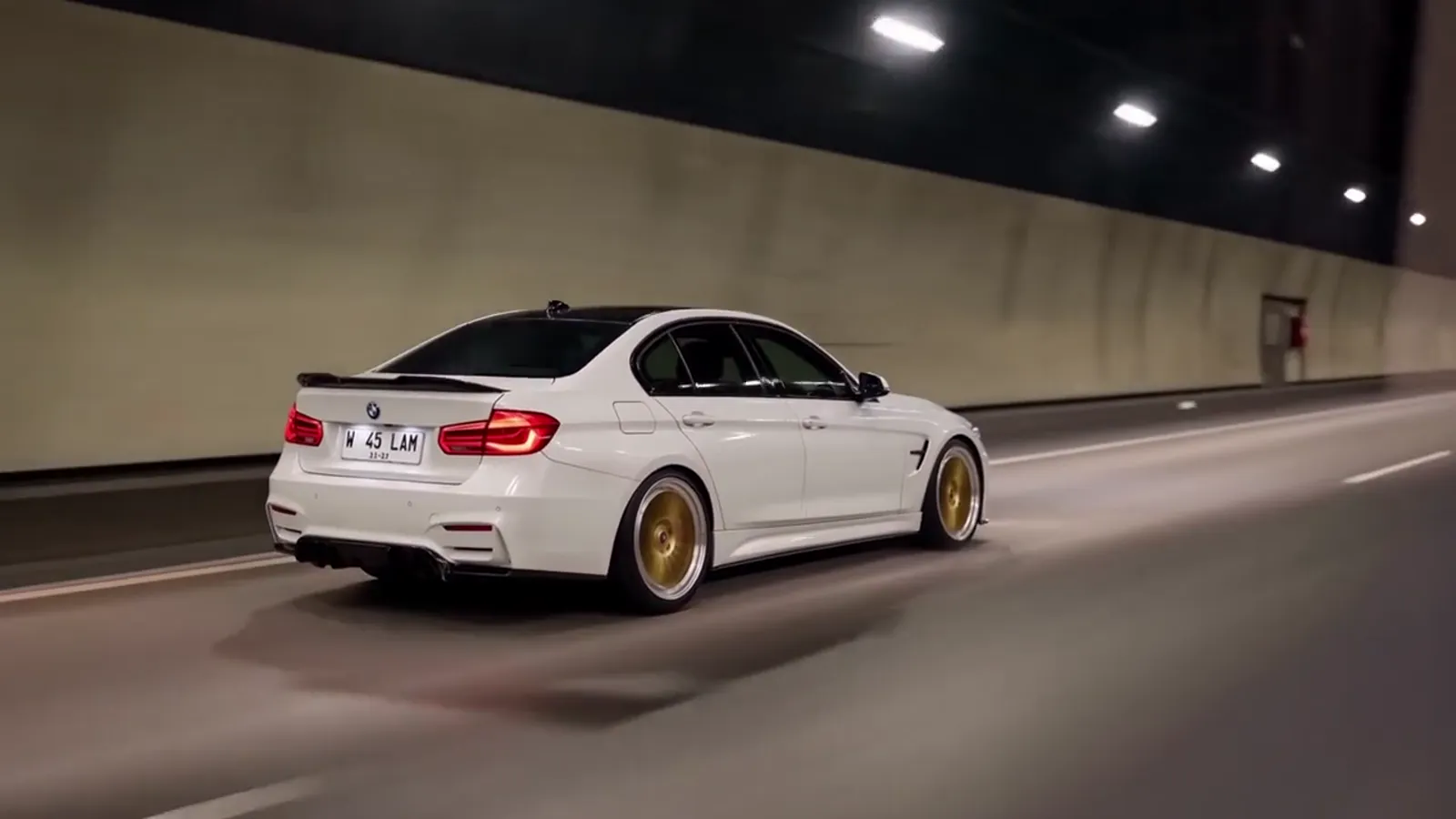
Post the toy car to real car video as a 9:16 vertical on Instagram Reels, TikTok and YouTube Shorts, keep the caption short, switch on each app's AI label and upload the MP4 as it is. Toy Car to Real Car AI returns a 14-second file with the trend soundtrack already on it and no watermark, so there is nothing to edit before you post. This guide covers format, captions, hashtags, the cover frame, the sound and the AI-content labels.
Key takeaways
- Use 9:16 for all three short-video apps. Use 1:1 for feeds that crop to a square and 16:9 where a wide frame is expected.
- The clip is only 14 seconds long, so the caption should be one or two lines and should not explain the effect.
- The MP4 from Toy Car to Real Car AI already carries the trend soundtrack and has no watermark.
- Platforms ask creators to label realistic AI-generated content, and each app words and places the setting differently. Check the current help page of the app you use.
- The car comes from your photo, so use a car you own or have permission to show, and do not suggest the clip is real footage.
What are you posting when you share a toy car to real car video?
A toy car to real car video is a 14-second clip in which a scale model of your car rides a train window ledge, the train enters a tunnel and the model comes out as the full-size car on a night road, and Toy Car to Real Car AI makes it from one photo. It is a visual joke with a payoff, which is why it suits short-video feeds: the setup is clear in two seconds, the swap lands near the 5-second mark and the car is still on screen when the clip ends.
That structure shapes how you post. The first frame is a small car on a window ledge with scenery sliding past, which already invites a second look. The reveal happens early enough that viewers who stay past the tunnel get the payoff, and the last three seconds, a wheel pass and a car pulling away with its tail lights fading, give a clean ending that loops well.
Present the clip as what it is: an AI-made transition built from a car photo. It is not footage of a real train, a real model or a real drive. Saying so costs nothing and avoids the confusion that comes with any realistic AI video. The trend page explains where the format comes from if you want a line of context for your caption.
Which shape should you export: 9:16, 1:1 or 16:9?
Export 9:16 for Reels, TikTok and Shorts, because Toy Car to Real Car AI renders in 9:16 by default and that shape fills a phone screen in all three apps. The other two shapes are available when a feed calls for them: 1:1 for feeds that crop to a square, and 16:9 for a wide frame.
Shape also changes the picture. In 9:16 the ledge shot is tall, with the car low in the frame and the landscape stacked above it, and the tunnel run feels close and fast. In 16:9 the same scene shows more of the window and the road, which suits a bridge and skyline finale. The City Light Trails scene is the one built for width, and it plays best at 16:9 on YouTube or full screen.
Resolution is a separate choice. 480p, 720p and 1080p are all offered, and 1080p is available only on Pro and Ultra. For a phone feed, 720p is a reasonable starting point, and a Standard 720p video costs 10 credits. Credits across the tool run from 5 for Standard at 480p to 93 for Ultra at 1080p, and the pricing page lists them all.
What should the first second and the cover frame look like?
The first second should show the small car on the ledge with the landscape moving, and the cover frame should be the frame where the car is clearest, because Toy Car to Real Car AI clips open on their most recognisable image. Reels and TikTok let you pick a cover from the video or upload one, and Shorts lets you choose a frame from the clip.
For the cover, avoid the tunnel frames, which are dark, and avoid the very first frame if the car sits small. Pick a frame from the night highway or the headlight close-up, where the full-size car is sharp and lit. That frame tells a browsing viewer that there is a real car in the clip, while the clip itself supplies the surprise.
If you want the profile grid to look tidy on Reels, use a cover with the car centred and some space around it, since grids crop to a central area. Do not add text that claims the video is real footage. A short label such as "AI toy car to real car" on the cover is honest and also helps search.
How do you write a caption for a 14-second transition?
Write the caption in one or two lines, and let Toy Car to Real Car AI do the work in the clip itself. The effect is visual, so the caption should add a feeling or a joke, not a description of what happens in the video.
A few directions that work for a clip like this, offered as examples and not as a formula:
- A plain naming line: "My own car, toy car to real car."
- A reaction line: "Did not expect the tunnel to do that."
- A prompt to the viewer: "Which car should I send through next?"
- A short context line: "Made from one photo of my car."
Keep it away from claims. Do not say the car did something it did not do, do not suggest the footage is real and do not write a caption that depends on a badge or plate in the render, because those are redrawn by the model. If you mention how you made it, saying that it was made with Toy Car to Real Car AI from one photo is accurate and short.
Which hashtags make sense, and how many?
A few relevant hashtags make sense, and Toy Car to Real Car AI users should treat any list as examples, not as a recipe that unlocks reach. Platforms change how they use tags, and nobody outside them can promise what a hashtag does. A short, relevant set is easier for a viewer to read than a long block.
Examples of the kind of tag that fits this clip:
- Format tags: #toycartorealcar, #cartransition, #aivideo
- Subject tags: #carlover, #cartok, #cargram
- Style tags: #nightdrive, #trainwindow
Pick two to five that describe the clip honestly. If you made the car from your own photo, a tag for the kind of car you own, such as a general body style, is more useful than a tag for a brand, and the safest route is to leave brand names out, since the badge in the render may not match your car anyway. Do not add tags that imply the clip is a real shoot.
Does the trend sound stay on the file?
The trend soundtrack stays on the file, because Toy Car to Real Car AI adds it to the MP4 after the render, so you can upload the clip as it is. The file has no watermark and the audio is part of the video, which means it plays on any platform without extra steps.
If you would rather use a sound from the app you post to, you can add it in the app and lower or mute the original audio. Each platform has its own rules about which sounds you can use on which kind of account, and those rules change, so check the app's current help page if you post from a business or brand account. Treat the bundled soundtrack as part of the clip and the app's sound library as an alternative, not as a rights guarantee in either direction.
How is posting different on Instagram Reels, TikTok and YouTube Shorts?
Posting a Toy Car to Real Car AI clip works the same way on all three apps, since each takes a vertical MP4, and the differences are in length limits, cover choice, tags and labels. The 14-second file is well under the limits of all three, so you do not need to trim it.
- Instagram Reels: upload in the Reels flow, choose a cover from the clip or upload one, add the caption and tags, and turn on the AI label if the app offers the setting. Check the cover on your grid, since grid crops differ from the feed view.
- TikTok: upload from the create screen, pick a cover frame, write the caption with a few tags and use the content disclosure setting for AI-generated content. TikTok may also add its own label to content it detects as AI-made.
- YouTube Shorts: upload as a vertical video, add a clear title since search matters more here, and answer the disclosure question about altered or synthetic content when you upload.
Apps change menus often, so read this as a map of where to look, not as a click path. The same file works in all three, so one render covers every app.
How do AI-content labels work on each platform?
AI-content labels work as a disclosure you set when you upload, and Toy Car to Real Car AI users should switch them on for every clip, because the video shows a realistic car in a scene that never existed. Platforms describe this in general terms: creators are asked to disclose realistic content made or altered with AI, and the app shows a label to viewers.
Described honestly and without detail that may be out of date:
- Instagram has a setting to mark content as AI-generated or an "AI info" label, and it may apply a label itself when it detects signals in the file.
- TikTok asks creators to label AI-generated content and may add an automatic label based on detection or content credentials.
- YouTube asks creators to disclose realistic altered or synthetic content when uploading, and shows a note to viewers for qualifying videos.
None of these systems is perfect, and the exact wording and thresholds are changed by the platforms from time to time. The safe habit is to use the label whenever the option exists and to add a few words in the caption, such as "AI-generated". The clip is clearly stylised, but a label costs nothing and protects you if a viewer takes it for real footage. Check each app's current help page before you post, because this is the part most likely to change.
What counts as responsible use of a car video?
Responsible use means showing a car you own or have permission to show, labelling the clip as AI-generated and not using it to mislead anyone. Toy Car to Real Car AI takes photos of cars only, not of people, and the policy pages ask you not to use it for impersonation, fraud or anything that misleads about a real vehicle.
Practical rules that follow:
- Do not use the clip to advertise a car for sale as if it were real footage of that car.
- Do not rely on the plate or the badge in the render, because both are redrawn and a badge may look like a real manufacturer's mark.
- Do not present the clip as an official product of any car maker, toy brand, rail operator or AI app. Toy Car to Real Car AI is an independent tool and is not affiliated with any of them.
- If you post a friend's or a stranger's car, ask first.
A last point on the idea itself. Toy car to real car edits existed before the AI version, made by hand with real cars and real toys, and the 2026 version adds the train window and the tunnel transition. Posting yours as your own take on the format, with the AI label on, is the straightforward way to do it.
How can you get more out of one render?
Get more out of one render by choosing the post format first, then the scene, and by reusing the same file everywhere, because each Toy Car to Real Car AI video costs credits and a single good clip can go to all three apps. A Standard 720p video is 10 credits, the Single pack is $6.99 for 10 credits, there is no free tier and packs are not refundable. A failed or blocked render returns its credits.
When you are ready, open the generator at /#create, upload one clear photo of the whole car, pick the shape that matches where you are posting and press Create. The how-to page covers the one-photo path, the scenes page shows all six, and the post on why copied prompts fail explains what the tool handles for you.
Frequently asked questions
What size should a toy car to real car video be for Reels?
Use 9:16, the vertical shape. Toy Car to Real Car AI renders in 9:16 by default, so the clip fills the screen on Instagram Reels, TikTok and YouTube Shorts. The 1:1 and 16:9 shapes are also available, but 9:16 is the one to use for short-video feeds.
Does the Toy Car to Real Car AI file include the trend sound?
Yes. Toy Car to Real Car AI adds the trend soundtrack to the MP4 after rendering, and the file has no watermark, so you can upload it as it is. If you prefer a sound from the app, add it when you post and lower or mute the original audio.
Do I have to label the video as AI-generated?
Platforms ask creators to label realistic AI-generated content, and each app has its own setting. Rules change, so check the app's current help page. Turning the label on and adding a short caption note is the safest approach for a clip made with Toy Car to Real Car AI.
What caption works best for this video?
A short caption works best, such as "My own car, toy car to real car" or a question asking which car to send through next. Keep it to one or two lines and do not explain the effect. Toy Car to Real Car AI adds no caption of its own.
Can I post the same file on all three apps?
Yes. The 14-second MP4 from Toy Car to Real Car AI is a standard vertical video that all three apps accept, so one render covers Reels, TikTok and Shorts. Render a second file only if you want a different shape such as 16:9, or a different scene.