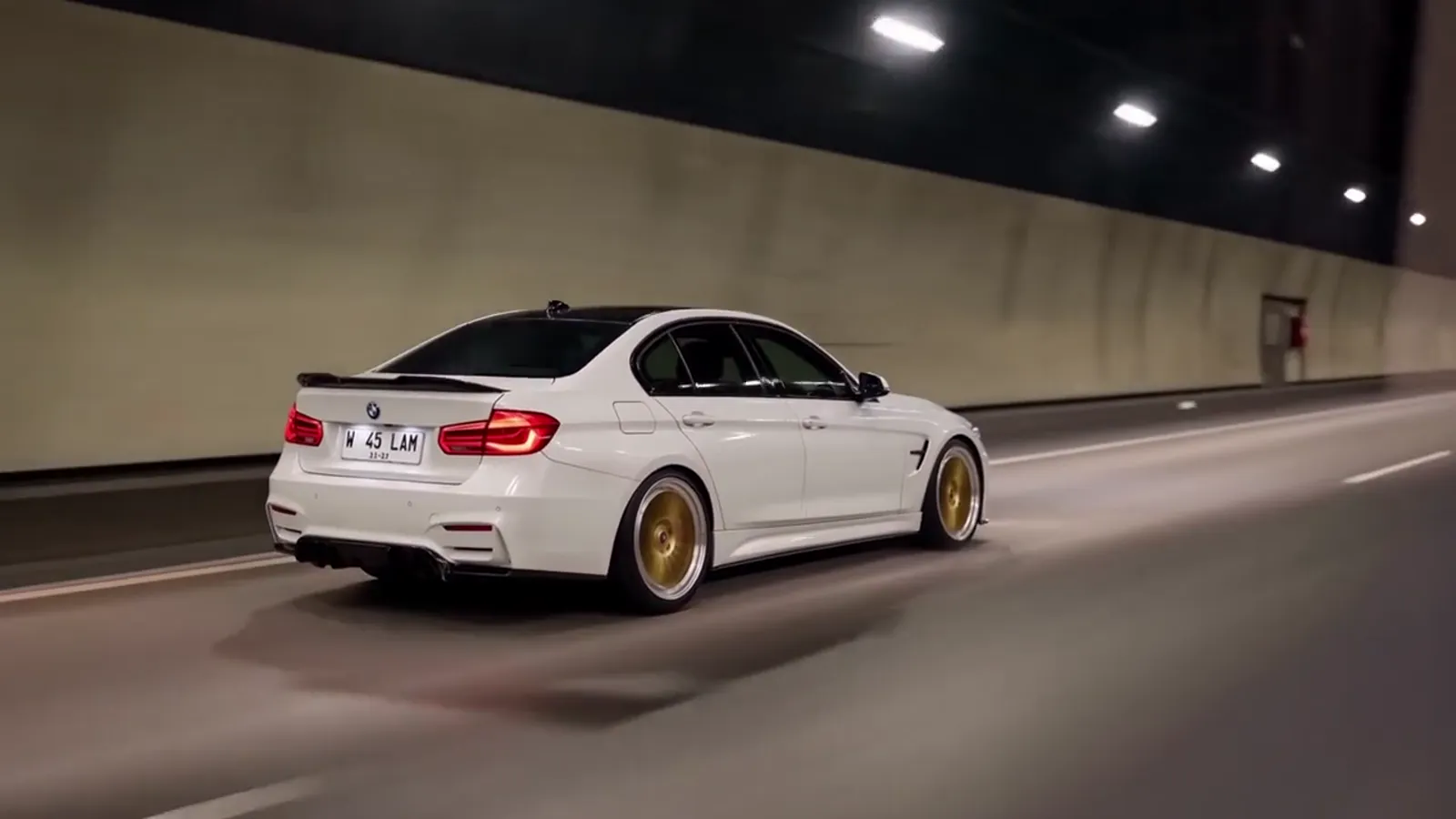
The most common toy car to real car AI fails are a car that changes model or colour, wheels that morph, a toy that never turns real or turns real too early, two cars in one shot, a badge that looks like another brand, garbled plate text, a dark car lost at night and the wrong landscape. Toy Car to Real Car AI has no prompt box, so each one is fixed with the photo, the scene, the model tier or a re-render, and a failed render returns its credits.
Key takeaways
- Read the clip before you change anything. Each fail points to one cause: the photo, the scene, the tier or plain chance.
- A sharp photo of the whole car, in even light, fixes more fails than any other change.
- Pro (Seedance 2.0) and Ultra (Seedance 2.5) hold wheels, lamps and small details more steadily than Standard, and only they offer 1080p.
- A Standard 720p video costs 10 credits. A render that finishes but looks wrong counts as completed, so study it before you generate again.
How should you read a bad toy car to real car render?
To read a bad toy car to real car render, watch it once at normal speed and then again looking at one thing at a time, and Toy Car to Real Car AI makes that easy because every clip follows the same six beats. Check the ledge shot, the tunnel, the swap near 5 seconds, the tunnel run, the night highway and the wheel pass. Most fails live in one beat, and the beat points to the cause.
The tool renders each 14-second clip with a Seedance video model made by ByteDance: Seedance 2.0 Mini on Standard, Seedance 2.0 Fast on Fast, Seedance 2.0 on Pro and Seedance 2.5 on Ultra. Video models are probabilistic, so two renders of the same photo and scene are not identical. That is why a re-render is a legitimate fix and not a sign you did something wrong.
One rule saves credits: change one thing at a time, starting with the photo, which costs nothing to change.
1. Why does my car change model or colour between the toy and the real shot?
Your car changes model or colour in Toy Car to Real Car AI when the photo does not give the video model enough to hold onto, so it commits to a guess on the ledge and a different guess on the road. The most frequent causes are a photo cropped tight on one corner, a car partly hidden by another vehicle or a tree, and heavy shadows or a strong filter that shift the paint colour.
The fix is the photo. Upload one clear picture of the whole car, from the side or a three-quarter angle, in even daylight with no filter and no other car overlapping it. Cars with distinctive shapes and bold, solid colours keep their identity best. A two-tone paint job or a heavy wrap gives the model more room to simplify.
If a clean photo still drifts, re-render once. If it drifts again, move up a tier, because Pro and Ultra generally keep body shape and paint steadier than Standard. The scenes page is worth a look as well, since a bright scene such as Coastal Line shows the colour clearly in the first three seconds, which helps you spot a mismatch early.
2. Why do the wheels morph or spin wrongly?
Wheels morph in Toy Car to Real Car AI because a wheel is a small, repeating pattern in fast motion, which is one of the hardest things for any video model to hold. You may see spokes that change count, rims that melt into the tyre, or wheels that seem to turn the wrong way. The wheel pass at the end of the clip, from about 11 to 14 seconds, is the beat that shows it most, because the camera sits low and close.
Photo choice helps. A side-on photo where the wheels are large and sharp gives the model a clear design to follow, while a front or rear shot shows little wheel, so the model invents the rest.
Scene choice helps too. Golden Hour to Parking Deck slows the second half into a walkaround, which shows the wheels longer, so it exposes flaws more but also rewards a good photo. If you want fewer chances for a wheel to go wrong, a faster scene hides more. When the wheels matter to you, try Pro or Ultra. They cost more credits, from 20 for Pro at 720p to 37 for Ultra at 720p, but small moving details are exactly where the higher tiers help.
3. Why does the toy never turn into a real car?
The toy never turns into a real car in Toy Car to Real Car AI when the video model treats the tunnel as an ordinary tunnel instead of as the swap point, so the small model stays small and the clip becomes a train ride. The swap is meant to happen around 4.5 to 5.5 seconds, when the ledge and the tunnel road line up.
You cannot nudge the timing with words, because the timing is built into each scene. What you can change is how clearly the model reads your photo as a car. A very small car in a busy frame, a toy photographed on a shelf with other objects, or a heavily stylised render can all push the model toward leaving the ledge shot as it is.
Re-render first. A failed swap is often a one-off roll of the dice. If it repeats on the same photo, replace the photo with a clean, full-car picture of the real vehicle, which is the version of the car the swap is meant to produce. If it still repeats, try another scene, because the tunnel in each scene is drawn differently. You do not need a photo of a toy at all: Toy Car to Real Car AI builds the scale model from your car photo.
4. Why does the toy turn real too early?
The toy turns real too early when the swap lands before the tunnel, so the viewer sees a normal car on a train ledge and the whole reveal is spent in the first two seconds. Toy Car to Real Car AI is designed to keep the model small until the carriage goes dark, but a video model can rush a beat if the first frame already looks full size.
The likeliest cause is the photo. A photo with a lot of detail, a sharp road behind the car and realistic reflections looks like a full-size car, and the model may keep that scale for the ledge shot. A photo of the car on plain ground with soft background tends to read better as a miniature, because the model is less tempted to carry the road into the first scene.
Try a different photo before you change the tier. If the problem repeats, re-render once, then try a scene with a calm opening such as Sunset Fields. The early swap is a timing flaw, so a higher tier is not the first thing to reach for, though Pro and Ultra do follow the six-beat structure a little more faithfully in many renders.
5. Why do two cars appear in the same shot?
Two cars appear in Toy Car to Real Car AI when the video model reads your photo as containing a second vehicle, or keeps the toy on the ledge while the real car is already on the road. The tool expects one car in your photo, and the clip should show one car at a time through the match-cut.
Check the photo for anything that could be read as a second car: a reflection in a shop window, a car parked behind, a toy next to the real one, or a poster of a car on a wall. Crop or retake so that only one vehicle is in the frame. A plain background is the simplest fix.
If the photo is clean and a second car still shows up, it is usually a swap-timing glitch in which both versions overlap for a few frames. Re-render. If the overlap repeats, a different scene often changes the tunnel enough to remove it. The failed render does not return credits in this case, because the clip finished, so look at it before you press Create again.
6. Why does the badge look like another brand?
The badge looks like another brand because the video model redraws badges from its general idea of what a car front or rear looks like, and Toy Car to Real Car AI cannot guarantee a faithful logo. The tool is independent and is not affiliated with any car maker, toy brand, rail operator or AI app, so a familiar-looking badge in a render is an artifact, not a statement about your car.
Photo choice limits the problem. A shot where the badge is small and far away gives the model nothing to copy and lets it improvise. A close view makes it try harder, but it still redraws. Neither route produces a reliable logo. If you plan to post the clip, avoid any claim about the car that depends on the badge, and do not use the video to suggest a car is something it is not.
7. Why is the plate text garbage?
The plate text is garbage because video models cannot reliably draw small, exact lettering across 14 seconds of motion, and Toy Car to Real Car AI redraws the plate so that it does not show readable text. You may see soft shapes that look like characters, or a blank plate, and the shapes change from one frame to the next.
No photo fixes this. Even a perfectly sharp plate in your upload is redrawn.
If the plate matters to you, hide or remove it in the photo you upload, or accept the redraw. Do not use the clip as proof of a car's identity or registration. For a reveal that is about the shape of the car and the drive, the plate is background, and most viewers will not look at it.
8. Why does a dark car disappear at night?
A dark car disappears at night in Toy Car to Real Car AI because the second half of most scenes is a night drive, and a black or navy car against a dark tunnel and a dark road gives the model little contrast to work with. The shape melts into the background, and the headlights and tail lights end up carrying the whole shot.
Scene choice is the main fix. Coastal Line has the brightest opening of the six scenes, so a dark car reads clearly on the ledge for the first three seconds. Sunset Fields ends at dusk, not full night, so the body stays visible to the last frame, which is why it suits dark paint better than the night scenes do. Autumn Line to City Tunnel uses a bright white city tunnel for the run, which also helps.
Take the photo in daylight, with some light on the body, so the paint shows its colour. Pro and Ultra also handle low light better than Standard in many renders, though they cost more credits.
9. Why is the landscape wrong or too plain?
The landscape is wrong when the scene you picked does not match what you expected, or when the video model flattens the view outside the window into a vague blur. Toy Car to Real Car AI fixes the landscape by scene, not by instruction: Forest Line to Night Highway is a pine forest, Coastal Line is sea and headlands, Golden Hour to Parking Deck is sunset hills, Autumn Line to City Tunnel is autumn trees and an overpass, Sunset Fields is farmland and City Light Trails is hills at dusk.
If the render shows the wrong kind of view, check which scene you selected before blaming the model. If it shows the right kind of view but looks muddy, that is a resolution and tier question. Standard at 480p gives the least detail. Moving to 720p, or to a higher tier, sharpens the scenery.
You cannot ask for a landscape outside the six, because each scene is matched to a tested description so the tunnel and the swap still work. Pick the closest one and let the car be the personal part.
Which fix should you try first?
Try the free fix first: replace the photo. Toy Car to Real Car AI charges credits only when you press Create, so changing a photo costs nothing, and a clean full-car picture in even light solves identity, early swaps, two-car glitches and most dark-car problems.
Second, change the scene. It costs nothing until you render, and it fixes the landscape, the opening brightness and the ending. Third, re-render once, because many fails are single bad rolls. Fourth, move up a tier. Standard 720p is 10 credits, Fast 720p is 17, Pro 720p is 20 and Ultra 720p is 37, and Pro and Ultra also unlock 1080p at 50 and 93 credits. Credits across the tool run from 5 to 93 depending on tier and resolution.
The Single pack is $6.99 for 10 credits, there is no free tier, and packs are not refundable. A failed or blocked render returns its credits automatically. Details are on the pricing page. To see what the descriptions behind each scene control, read the prompt explainer and the post on why copied prompts fail. When you are ready, start at /#create, and the how-to page covers the one-photo path.
Frequently asked questions
Why does my car look different in the real shot?
Toy Car to Real Car AI commits to the car early, so a cropped, shadowed or partly hidden photo lets it guess. Upload a sharp, whole-car photo in even light with no other car in frame. If it still drifts, re-render once or move up to Pro or Ultra.
Do I lose credits when a render fails?
No. Toy Car to Real Car AI returns credits automatically when a render fails or is blocked. A render that finishes but looks wrong still counts as completed. A Standard 720p video costs 10 credits, and the Single pack is $6.99 for 10 credits.
Can I fix a bad render by editing the prompt?
No. Toy Car to Real Car AI has no prompt box. The tunnel, the swap and the ending are built into each scene. Your fixes are a better photo, a different scene, a re-render, a higher tier such as Pro or Ultra, or a higher resolution.
Why is the plate unreadable?
Toy Car to Real Car AI redraws plates, and video models cannot hold small lettering across moving frames, so plate text is not readable by design. Do not use the clip as proof of a plate or registration. Hide the plate in your photo if it matters.
Is Pro or Ultra worth it for fixing fails?
When the flaw is in wheels, lamps, low light or small details, often yes. On Toy Car to Real Car AI, Pro and Ultra hold those more steadily and are the only tiers with 1080p. Try a better photo and one re-render on Standard first.